First Web Push Mailing
 | Web push notifications (also known as browser push notifications) are small pop-ups in the browser. These messages are contextual, timely, personalized, and best used to engage, re-engage, and retain website visitors. You can send such notifications to your clients' desktop and mobile browsers. When a user subscribes to Web push notifications, every time you send a push notification it is displayed on the user's device at the top of the screen. Moreover, it is displayed even if the window is inactive. |
This tutorial will help you to create and launch your Push mailing in the Altcraft Platform from scratch.
Push notifications are much more profitable than SMS, because sending them practically costs nothing.
Step 1: Configure a Domain to Work with Push
If you use an Altcraft Marketing cloud account, please give the information to the support team at team@altcraft.com. They will help you to connect the integration.
If the Altcraft Marketing platform is installed on your equipment (On-Premise), contact your platform administrators. Or just contact our support team!
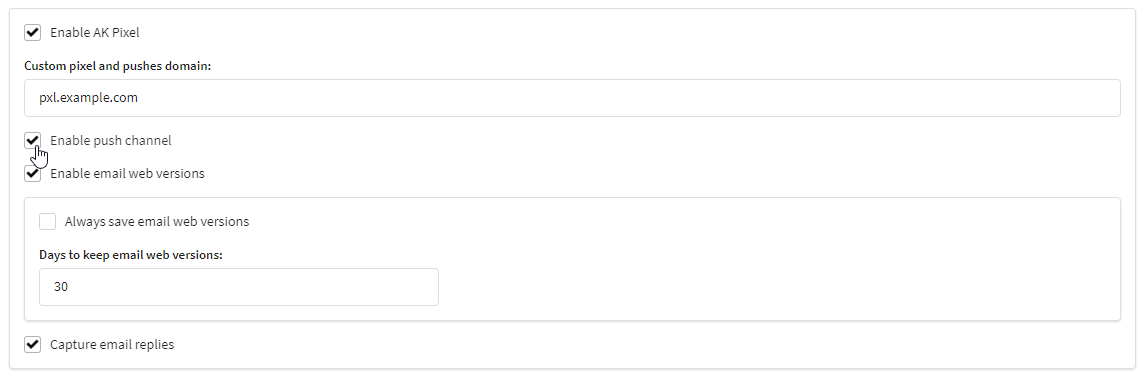
Make sure your website is running over HTTPS. In addition, web pixels must be configured in the Altcraft Marketing system.
Go to Administration Panel —> Account Management.
Step 2: Subscribe customers to the Push channel
Profile databases and subscription resources
Altcraft Marketing mailings are received by your subscribers. Subscriber profiles are stored in profiles databases.
When you start your Push mailing, you use profile subscriptions to resources. This way, you can send notifications to different devices or to different browsers. Each client profile can be subscribed to one or more resources.
What can be a resource? A specific marketing area, a site, an application, or the type of content.
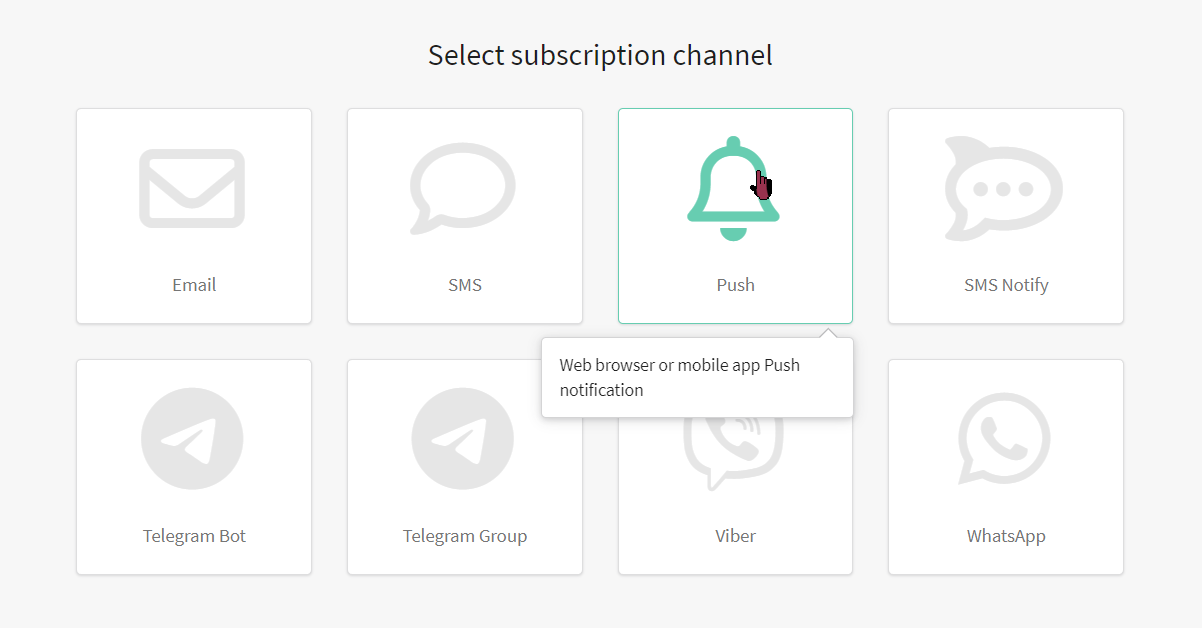
Select the section "Resources" in the main menu, then create a new resource or select an existing one. Select the Push channel for your new resource:
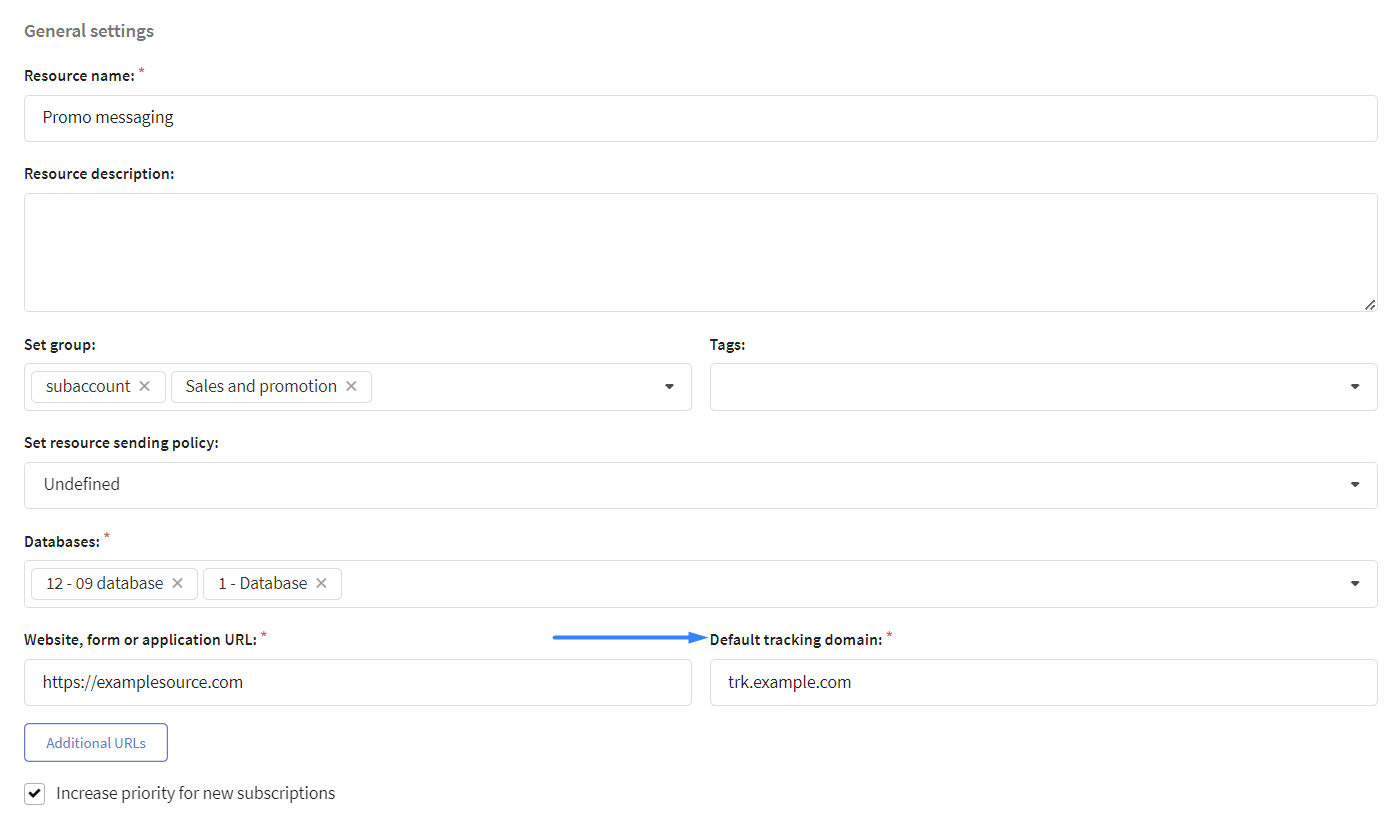
In the general settings, add the necessary databases. If it's necessary, assign a sending policy and specify the Default tracking domain. This domain will process your customers' clicks on links in messages:
In Push settings, select the browsers to which you are going to send notifications to clients and set them up:
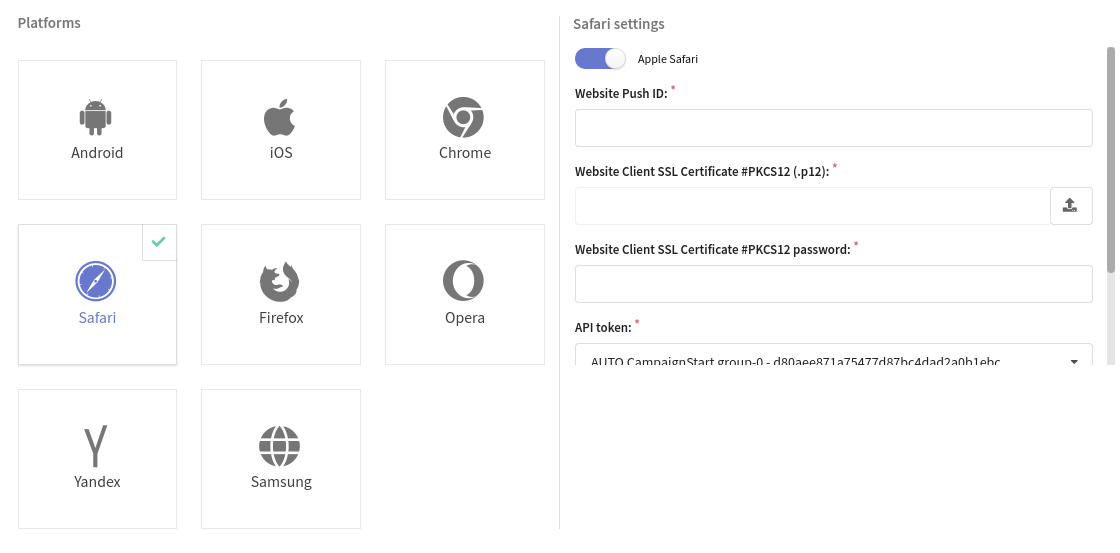
Altcraft Marketing uses different push platforms for the supported browsers:
| Service | Which browsers use this service to send Web push notifications? |
|---|---|
| Google Firebase | Google Chrome, Mozilla Firefox, Opera, Yandex.Browser, Samsung Internet Browser |
| Apple Push Notification Service | Apple Safari |
| Mozilla Services | Mozilla Firefox |
Please note that sending notifications via Mozilla Firefox is possible both directly - Mozilla Services (SDK is built into the browser), and through the Google Firebase service.
Don't know how to configure each platform? Take a look at this tutorial .
Customer profiles and subscription to the resource
So, we've just configured the profiles database and subscription resource. Now it's time to import customer data into the platform. For each client, Altcraft Marketing creates a single digital profile that includes personal data, history of actions and subscriptions to your resources.
Existing subscriber database
If you already have the database full of tokens for your customers, you can upload customer data to the platform and use it for mailings: one at a time, in a list, or from a table file. Different import methods are described in this article.
You can also set up automatic import of client profiles:
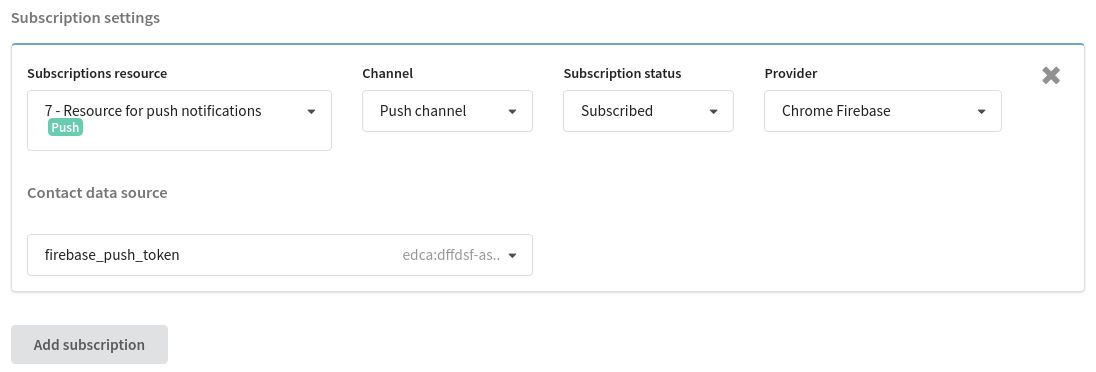
When you import data, sign clients to the previously prepared resource. To do this, in the "Subscription settings" section, select Push as a communication channel, select a notification provider, in the "Contact data source" field, specify the column with device tokens:
If you already have a profiles database, add them a subscription to a new resource. There are two options:
- if customers have subscriptions to another resource with up-to-date email addresses — use bulk profile update
- if you need to upload to the platform SMS phones for subscription, use the profile import in the "update only" mode
New push subscribers of your website
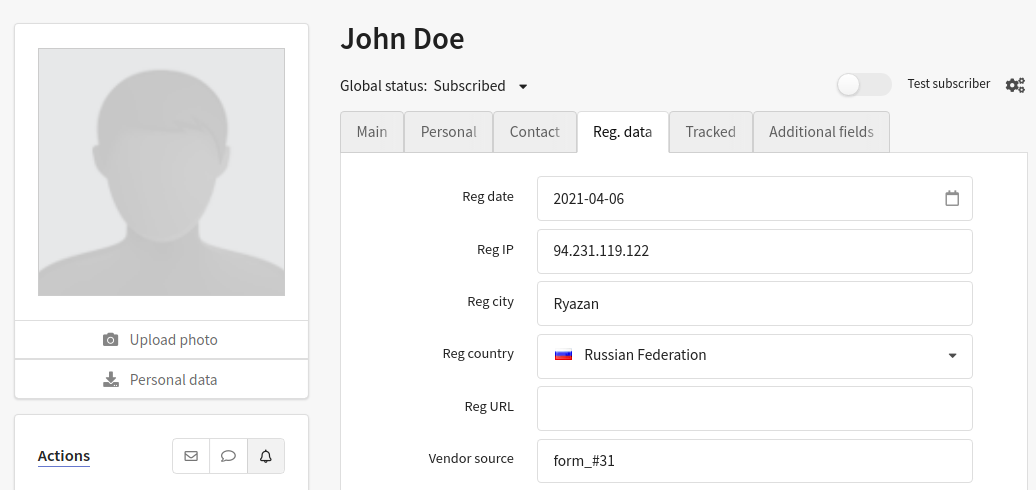
Altcraft Marketing imports the profiles of your website visitors when they allow push notifications. At the same time, information about the subscriber's device, IP address and geolocation determined by it are recorded in the profile:
Go to the next step to configure the import of new push subscribers.
Step 3: Add Push Toolkit to your website
After you configure push notification channels, save the resource. This way, you will get access to push implementation toolkit. You can find the toolkit on the tab "Install".
Download it and hand over the toolkit to the developers of your website. They'll have to add it to certain web-pages. In addition, hand them the link to this article or the article on Web Push configuration.
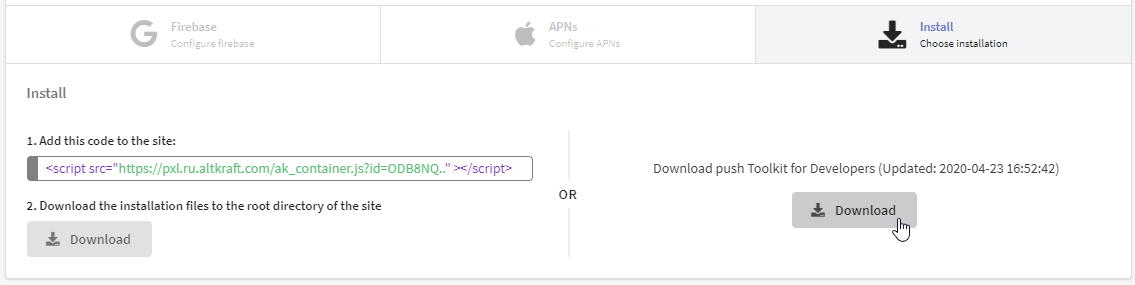
There are two ways to install the necessary files on your website:
1. Add the code to the site & Upload the installation files to the root directory
If you're going to use this method, read the instructions in the left side. Add the code to the site, save changes and upload the installation files to the root directory of the site:
manifest.json — project information for Google Chrome;
- service-worker.js — service worker, service worker, a users' browser extension to receive push notifications.
Here service-worker.js file is dynamic. It is automatically updated every time you make changes to the resource settings.
importScripts(
  "https://pxl.polina-zakaryan.dev.altkraft.com/service-worker.js?id=MXw3"
);
2. Download push Toolkit for Developers
If you're going to use this method, read the instructions in the right side. Click the "Download" button. The Toolkit will be downloaded as a .zip file. Unpack the archive and put Toolkit files to the root directory of your site.
This toolkit consists of four files:
- README.txt — installation instructions for the Toolkit
- ak-push.js — web push opt in script for your website
- manifest.json — project information for Google Chrome
- service-worker.js — service worker, a users' browser extension to receive push notifications
Here service-worker.js and ak-push.js files are static. It means that every time you change the resource settings you need to re-download the Toolkit and update the files on the site.
When the Toolkit is uploaded to the site, add the code, that will be responsible for showing a window for subscribing to the required action.
Example for the Subscribe button:
<button id="init_sub">Subscribe to updates!</button> // The button

<script>
	document.getElementById('init_sub').addEventListener('click', function() { // On button click..
	try {
		const akPush = new AKPush();
		akPush.initSubscription() // ..show the subscription form
		}
	catch (e) {
		console.log(e); // ..or log the error to the browser console
		}
	});
</script>
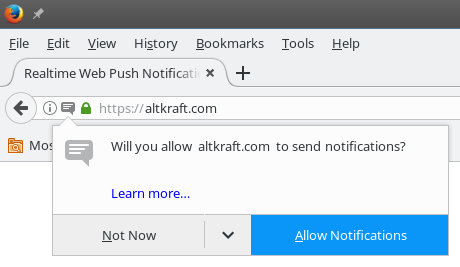
Once everything is set up, you can go to the site and subscribe to push notifications. When the client confirm the subscription, Service worker is installed in his browser. Service worker can display messages even when the browser window is minimized.
Step 4: Prepare content for sending
The content for your Push mailings is created in Message Templates. The templates contain content for all available channels. When you create a new template, select the Push channel or add it for an existing one.
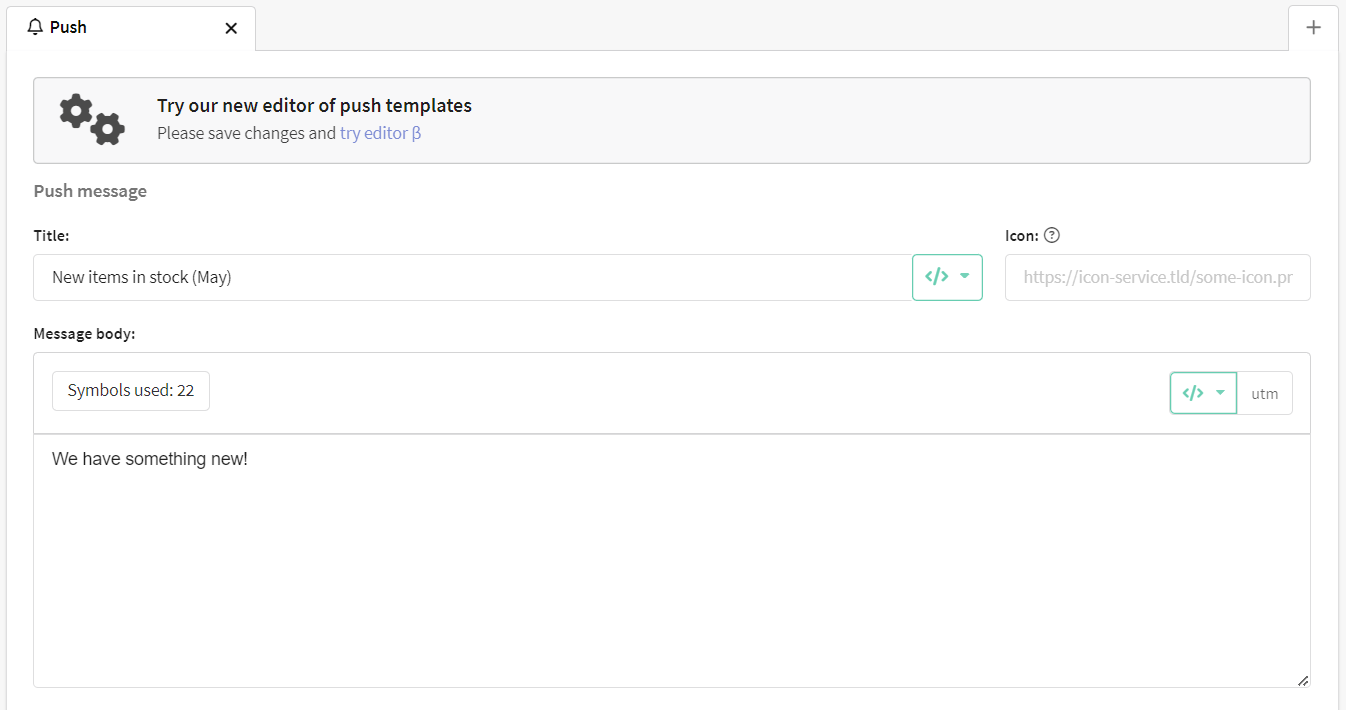
The template of the push notification can contain:
- A title that is similar to email subject
- Notification body is the main text part of the message
- An image or an icon that will be displayed in the notification
- A clickable link is the link that the subscriber will follow when he clicks on the push notification.
To the title, link and body, you can add the data of a specific client, as well as dynamic text content from external sources:
If you send not just Web push, but Rich push notifications, you'd better take a look at our special editor to create a template. In Rich push notifications, you can add not only a text and an icon, but also buttons, images, banners, and even audio and video files. What's more, the new editor will allow you to individually customize the notification for a specific browser, as well as add adaptive links and deeplinks.
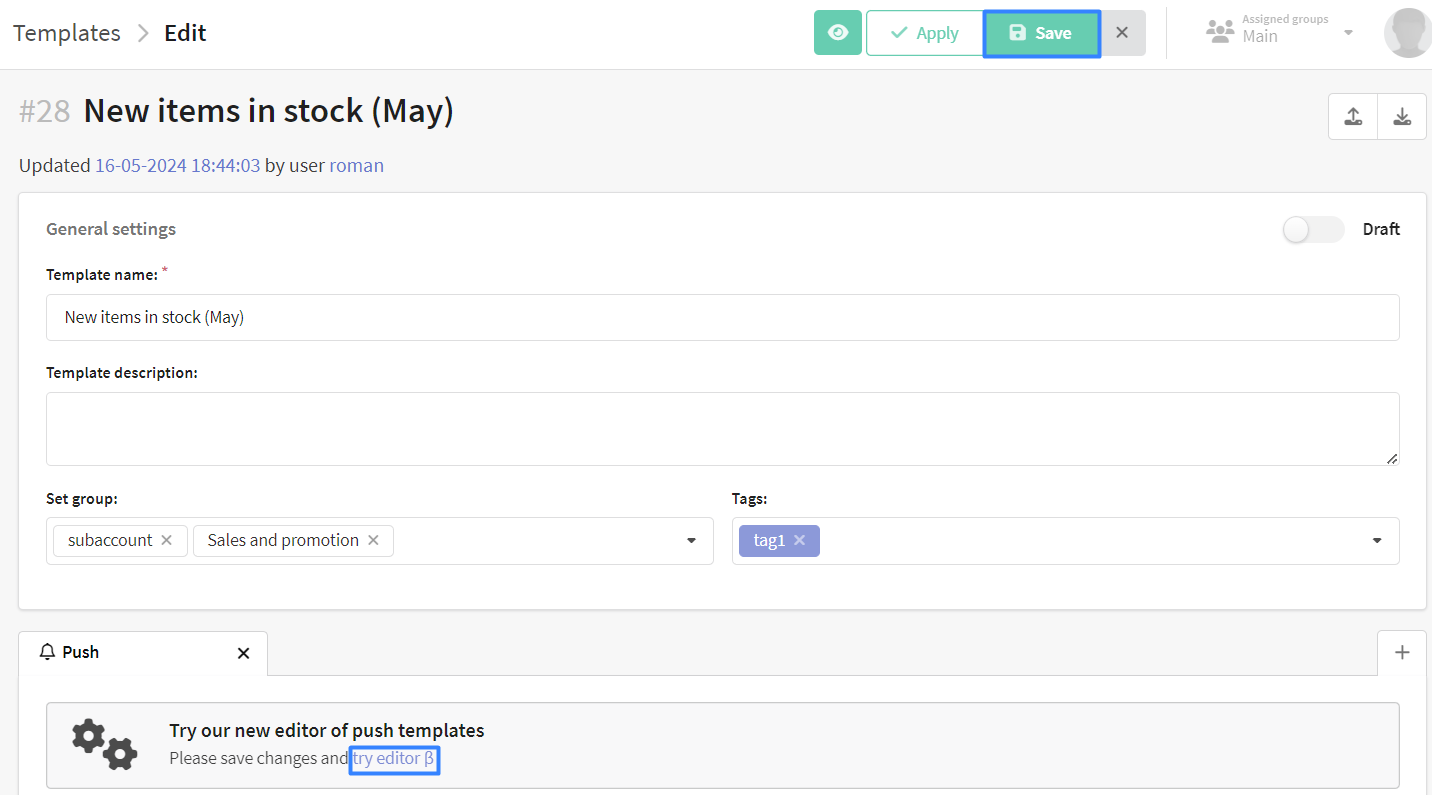
To open the Rich push editor, you need to make an initial version of a push message in the usual template editor at first. We've just described how to do this above. Then click Save. Now go back to the created template and click "try editor β" to go to the Rich push editor.
Step 5: Select the mailing type
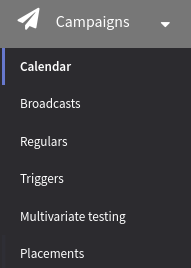 | If you want to send a Push message, you need to use such a tool as a Mailing. Do you want to send out a one-time mailing to all profiles
of the database or to the audience of the specific segment? Choose Broadcasts . If the mailing is periodic, your choice is a Regular mailing. In the main menu select Mailing and open Calendar. This is where you'll find all scheduled mailings. |
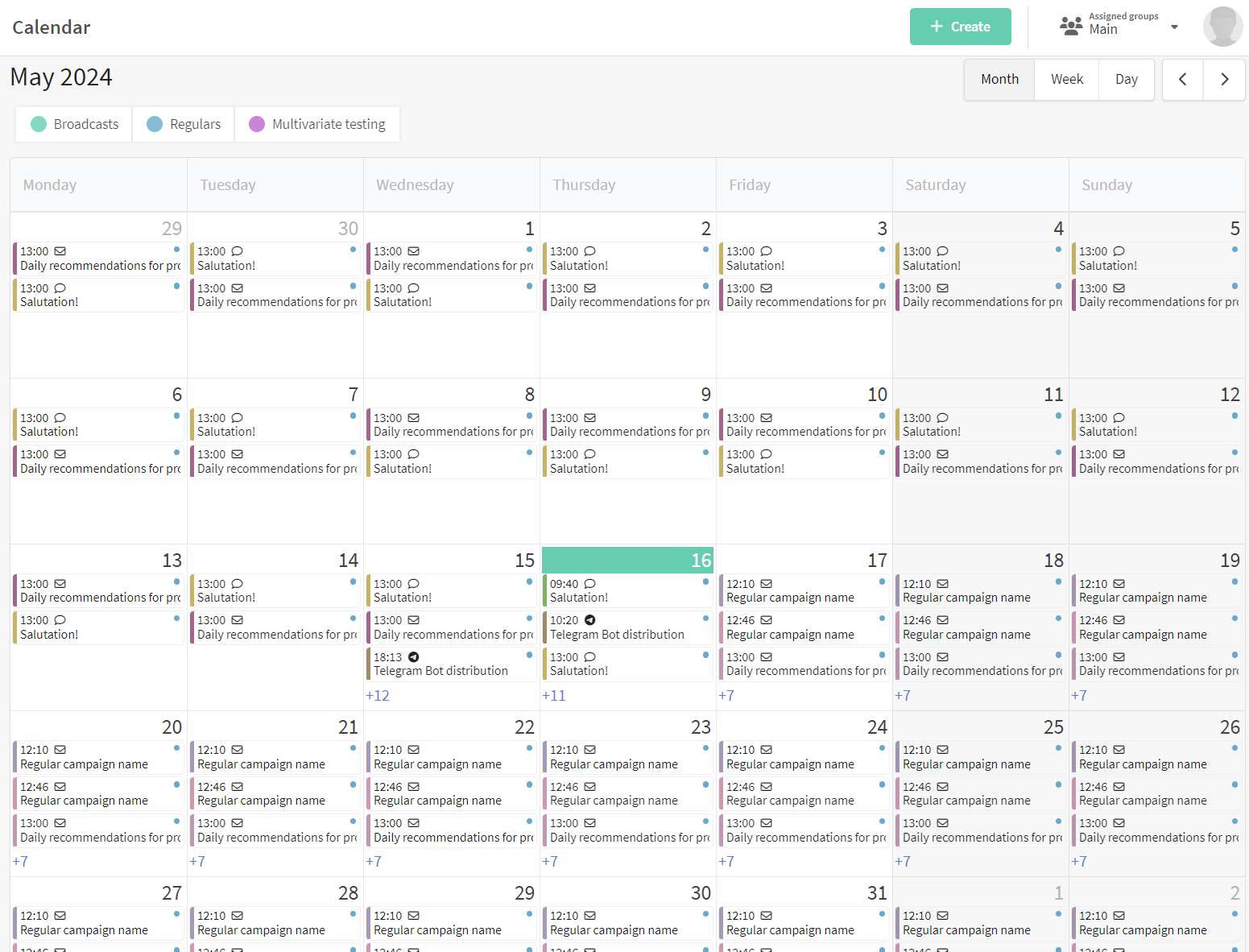
Decide on a date and create a mailing of the required type:
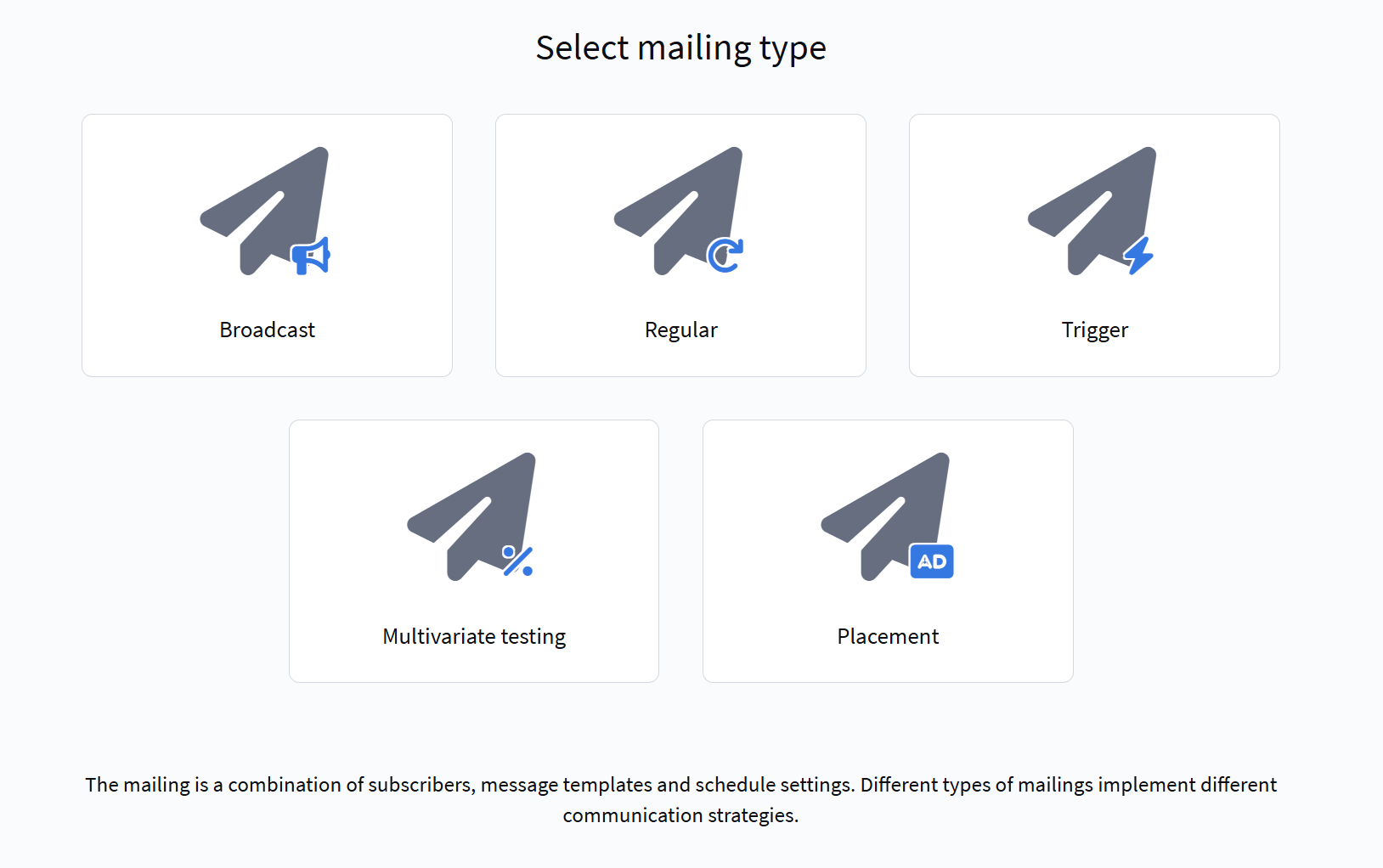
You can find details about how to set up Broadcast on this page.
You can find details about how to set up Regular mailing on this page.
Once you're done with the general mailing settings, you need to:
- Select Push as the communication channel;
- Select providers and sending mode. There are two sending modes - fanout, sending to all subscriptions, or last, sending to the subscription with the most recent creation date. If there are several of these (created at the same time), then one subscribtion will be selected randomly. If mailings have filters by provider, custom fields or categories, then the filters are first applied, and then the most recent subscription is choosen;
- Select the subscription resource you've just configured and the audience of recipients;
- Add a message template to your message;
- Set a schedule. For example, for a broadcast the option "On specific date at specific time" is available.
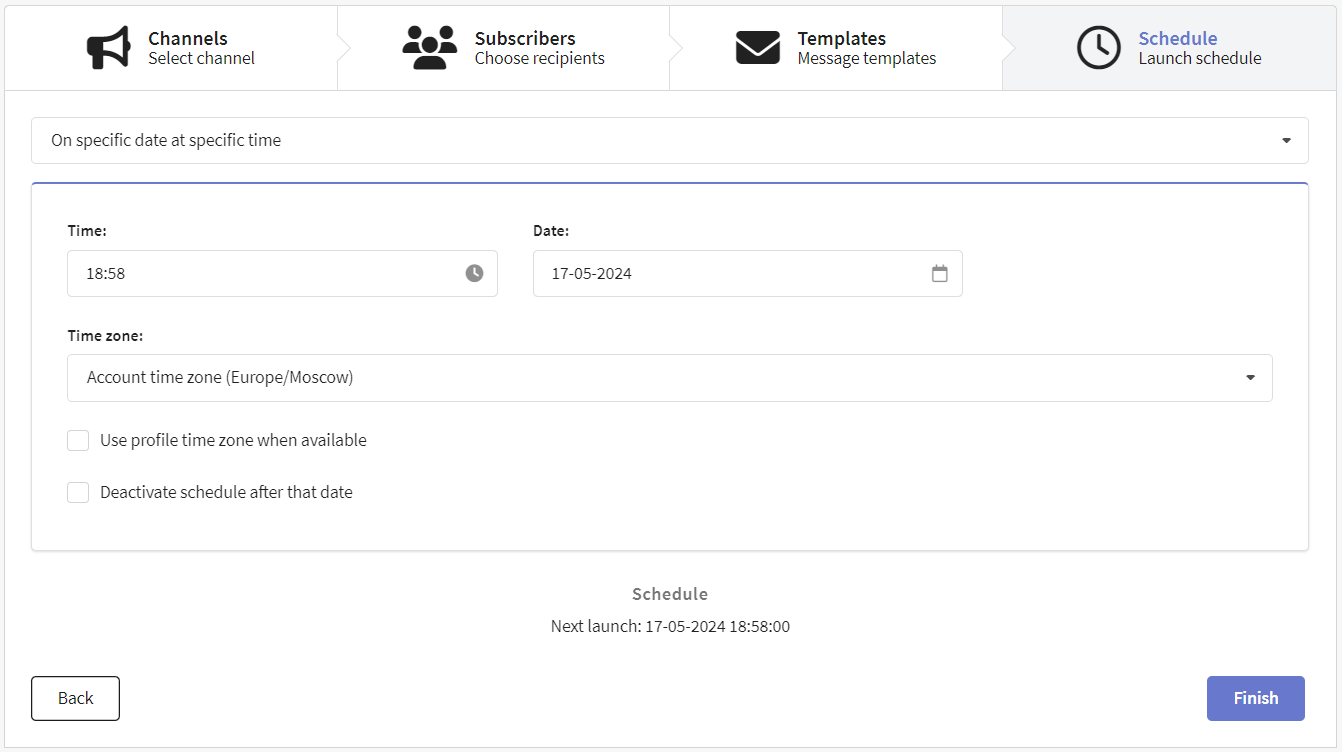
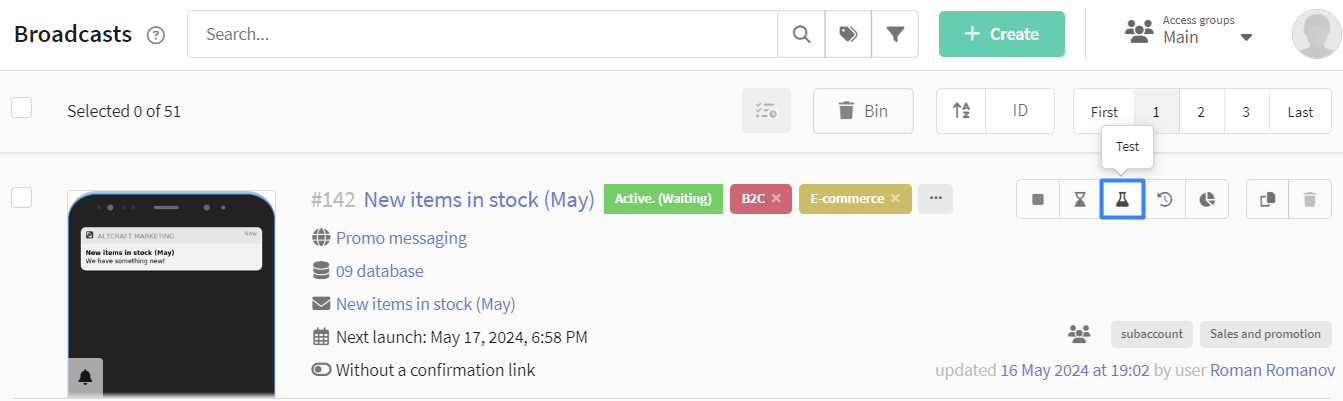
Once the mailing is set up, save it. Later you can find it in the list of mailings of the corresponding type. There is a quick action menu on the right side of each mailing. Use it to test the mailing — and if everything is successful, activate it:
Step 6: Assess the mailing effectiveness
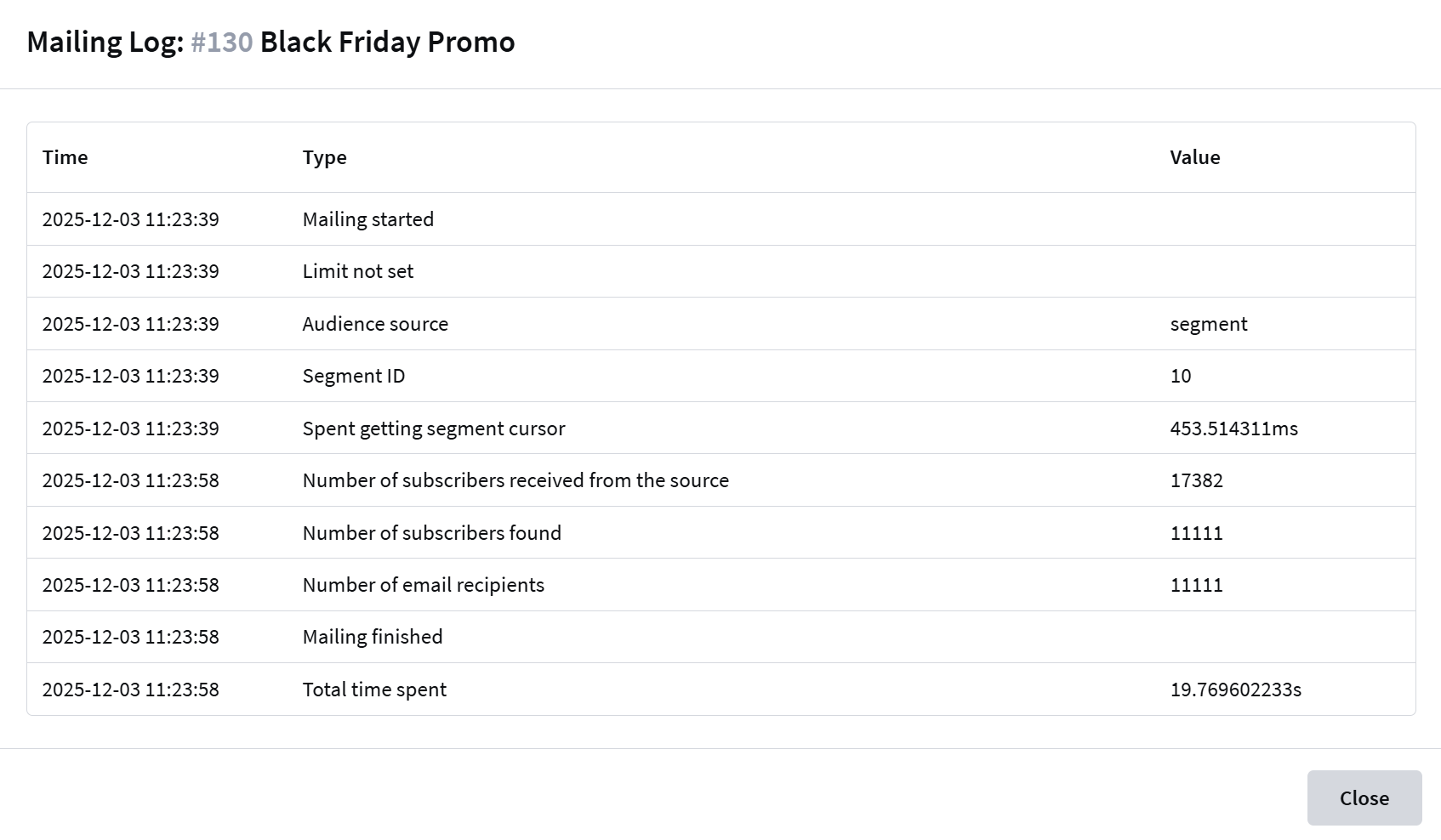
Mailing Log
The Mailing Log is a tool that provides a summary of the progress of your email mailing. It logs key events, mailing parameters, and statistics, helping you identify potential issues.
To open the mailing journal, click the "Journal" button in the quick actions menu:

The mailing Log contains the following information:
| Type | Description |
|---|---|
| Mailing started | Timestamp when the mailing execution began |
| Limit | Indicates whether a sending limit is configured |
| Audience source | Contact origin: List — Database Segment — Predefined contact group |
| Database ID/Segment ID | Unique identifier of the database being used |
| Spent getting segment cursor | Time required to load contact data from source (milliseconds) |
| Number of subscribers received from the source | Total contacts available in the specified source |
| Number of subscribers found | Contacts with active subscriptions matching mailing criteria |
| Number of subscribers without push subscriptions | Users who haven't opted in to receive push notifications |
| Number of Push recipients | Final count of devices that successfully received notifications |
| Number of Push messages sent | Total push notifications dispatched by the system |
| Profiles ignored by resource settings | Contacts excluded due to mailing configuration rules |
| Mailing finished | Timestamp when mailing processing completed |
| Total time spent | Complete duration from launch to completion (seconds) |
Reports and Analytics
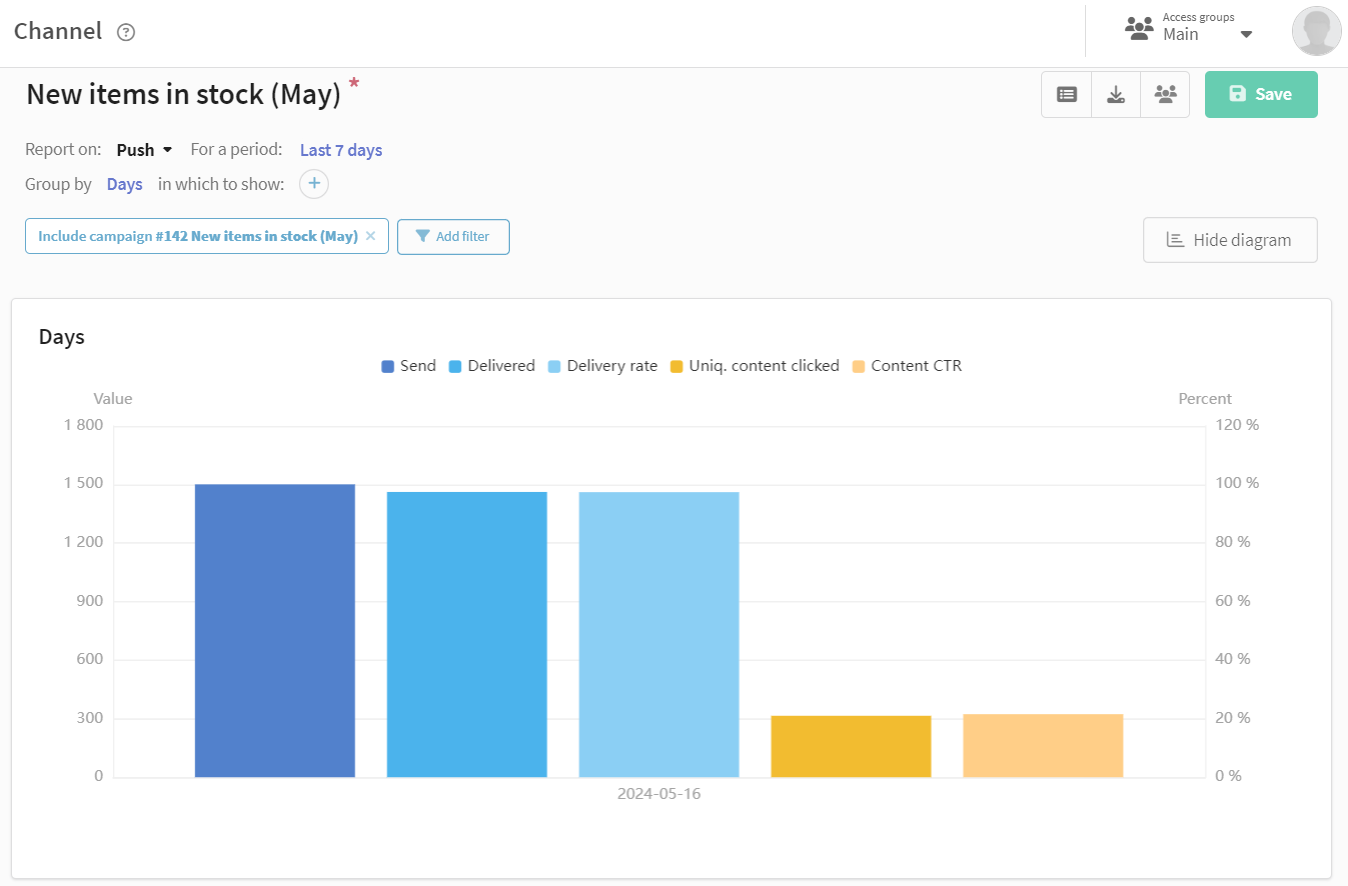
To evaluate the effectiveness of your push mailings go to the section Analytics in the main menu of the platform.
The channel report provides analytics for one or several mailings, for one or several communication channels. For the convenience of grouping, you can select a preset of indicators for Push:
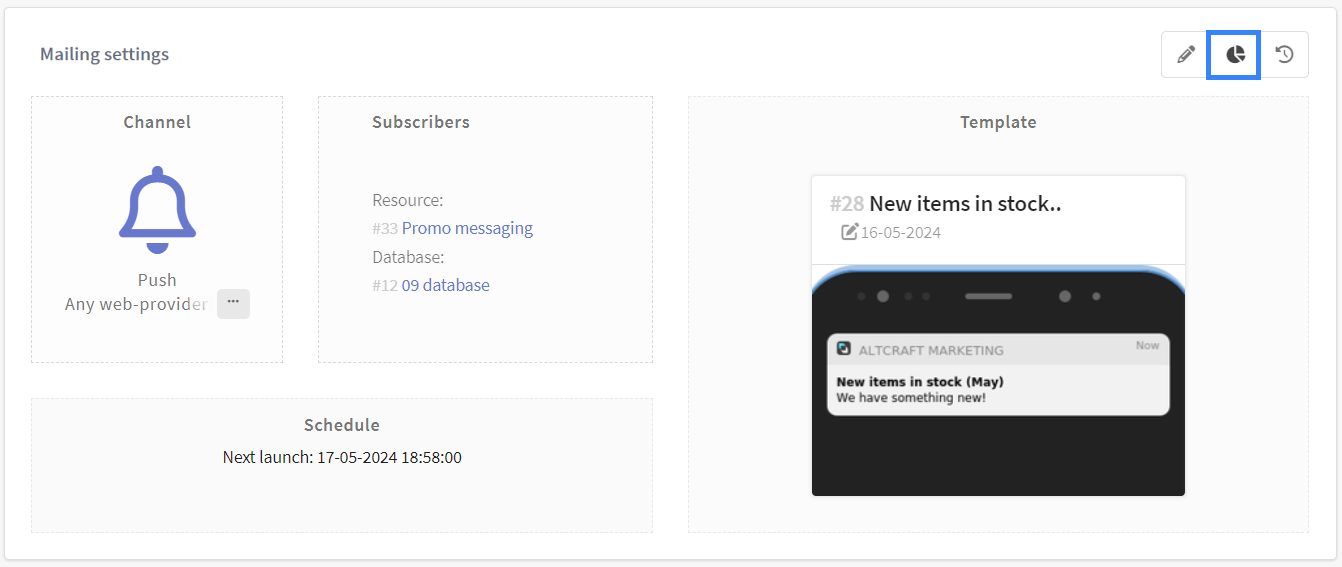
You can also go to the channel report for a specific mailing by following the link in the mailing editor:
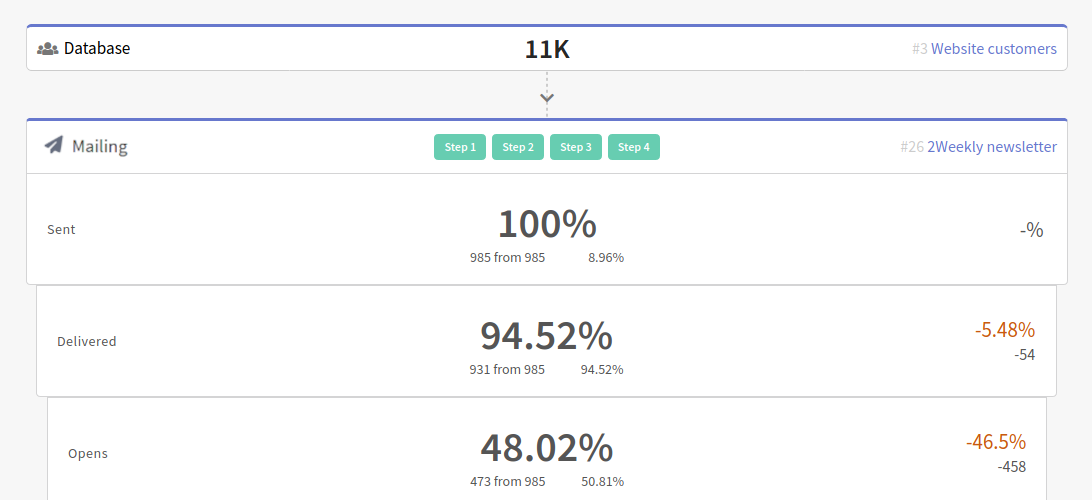
Actions in the Push mailing or in the template can turn into steps in the interactive conversion funnel: