Importing and exporting a message template
Description
This functionality allows you to upload a message template to the platform or download it to your device. This can be a template for one channel, or for several channels at once. A zip file is used for export and import.
The corresponding buttons are available in the template editing window in the upper right corner:
 — template import
 — template export
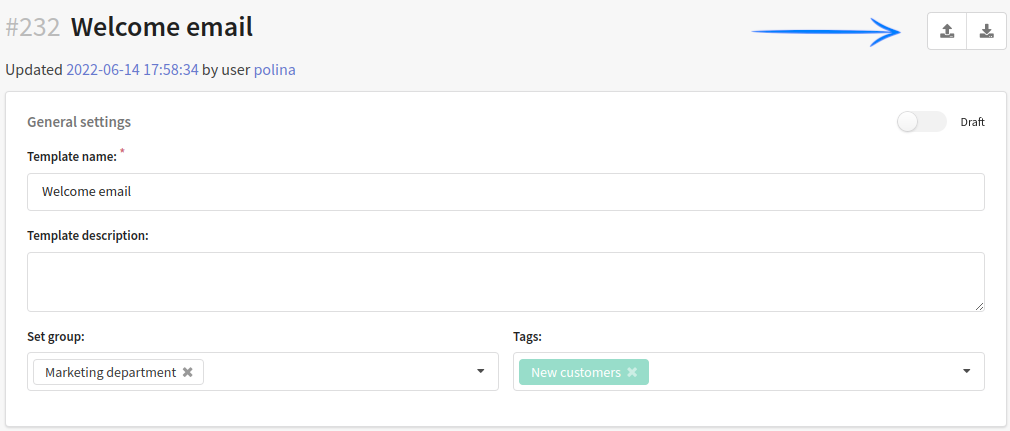
Template import
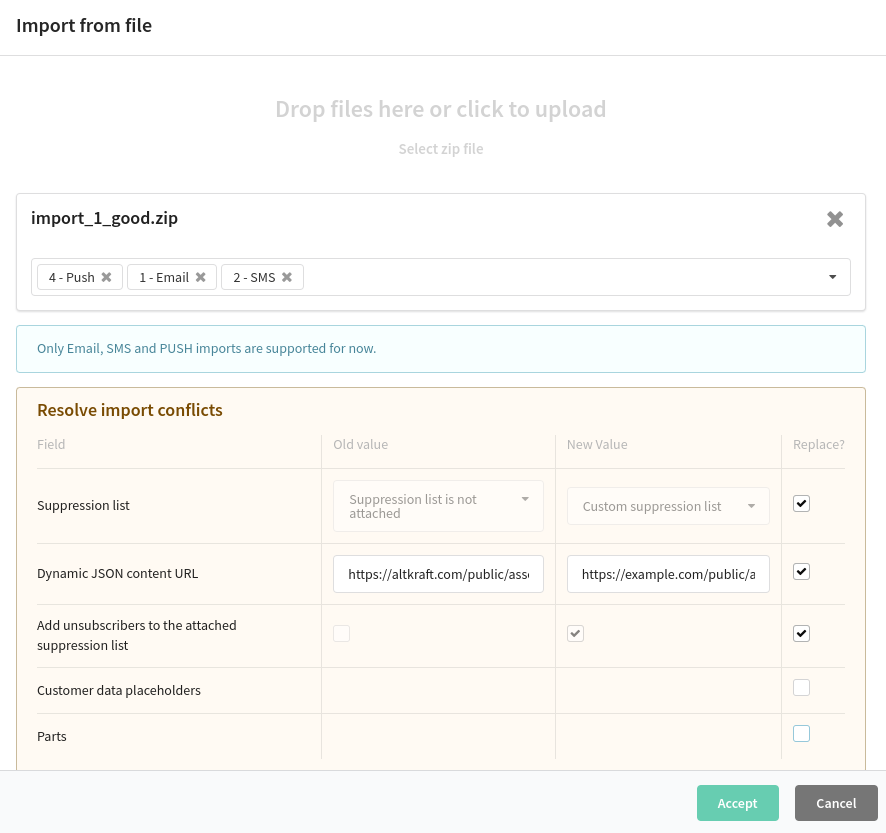
To import a template into the platform, click on the icon . Next, click on the download area and select the zip file on your device.
Set up the import:
- Select the channels for which you want to import the template (Email, SMS, Push).
Resolve import conflicts. Conflicts arise if the data being imported and the data already stored in the platform are different. The table shows the old and new value. If you want to update the data, check the "Replace" column.
Click Accept to start the import process.
Zip file structure
A zip file is used for import. The archive must have a certain structure:
<catalog_name>/
    <channel_name>/
        <fieldname>.<type>
        <attach>/
            <fileid>/
                <filename>
    images/
        <image_name>
    template.json
Structure description:
| Element | Example | Description |
|---|---|---|
| <catalog_name> | template_newsletter | Root directory. You can use an arbitrary name. |
| <channel_name> | email sms push | The directory contains template data for a specific send channel. The directory name must match the channel. Import of Email, SMS and Push templates is available. Information about which files can be imported for each channel can be found here. |
| images | image_1.png | Directory for storing images |
| template.json | — | The file contains general data about the template (link to dynamic JSON content, additional settings, fragments and parts). You will find more detailed information below. |
Zip file example
Starting from version 68, images can be stored either at the same level as the HTML file or in a folder with one of the following names: images, image, img, imgs, pictures, pics. An archive containing such an email template should not include files like text.txt, subject.txt, or template.json, as their presence may cause import errors.
Basic structure for an email channel
template_123/
    email/
        html.html
        text.txt
        subject.txt
    images/
        image_1.jpeg
    template.json
Full structure for all channels
template_123/
    email/
        html.html
        text.txt
        subject.txt
        amp.txt
        is_amp.txt
        is_not_inline.txt
        from_email.txt
        from_name.txt
        replyto_email.txt
        replyto_name.txt
        attach/
            023f-ad8c-4412-9bba-16ac/
                attach_file.zip
    sms/
        sms.txt
        add_sms_url_scheme.txt
    push/
        title.txt
        body.txt
        click_url.txt
        icon.txt
        is_rich_push.txt
    images/
        image_1.jpeg
        image_2.jpeg
    template.json
Image paths in HTML
To ensure correct image rendering in an imported template, use relative paths that match the archive structure.
Recommended structure:
template_name
├── email
│   └── html.html
└── images
    └── banner.png
Example of a correct path in HTML:
<img class="img" src="../images/banner.png" alt="Banner">
Description of fields for each channel
- SMS
- Push
| File | Example | Description |
|---|---|---|
| html.html | <html>Hello, world!</html> | HTML version of the message |
| text.txt | Hello, world! | Text version of the message |
| subject.txt | Best books 2022 | Subject line |
| amp.txt | <html>Hello, world!</html> | AMP HTML version of the message |
| is_amp.txt | false | Is there an amp version in the template or not |
| is_not_inline.txt | true | Do not convert CSS to inline |
| from_email.txt | awesome@example.com | Sender's email |
| from_name.txt | Awesome Books | Sender's name |
| replyto_email.txt | reply_awesome@example.com | Reply-to email |
| replyto_name.txt | Awesome Books | |
| attach (directory) | 023f-ad8c-4412-9bba-16ac/ attach_file.pdf | Directory for storing attached files. It contains additional directories, each containing a separate file. Arbitrary names can be used to name additional directories. |
| File | Example | Description |
|---|---|---|
| sms.txt | Hello, world! | Message text |
| add_sms_url_scheme.txt | true | Add "http://" to links |
| File | Example | Description |
|---|---|---|
| title.txt | Best books 2022 | Notification title |
| body.txt | Hello, world! | Notification text |
| click_url.txt | https://example.com/ | Click-to-click link |
| icon.txt | https://example.com/images/test.jpg | The URL where the notification icon is located |
| is_rich_push.txt | false | Use rich version for push message or not |
| <platform>.json | <html>Hello, world!</html> | Templated data for a specific browser or OS (when using rich push) |
template.json file
This file contains data that is displayed in the "Options" and "Content" blocks.
template.json example
{
  "json_url": "https://altkraft.com/example/content.json",
  "suppress_id": 1,
  "is_unsub_to_supp": true,
  "field_overrides": {
    "lead": {
      "_fname": "client"
    }
  },
  "parts": []
}
Description of fields in template.json
| Field | Example | Required | Description |
|---|---|---|---|
| json_url | "https://altkraft.com/example/content.json" | No | Dynamic JSON content URL |
| suppress_id | 1 | No | Suppression list ID |
| is_unsub_to_supp | true | No | Add unsubscribers to the attached suppression list |
| field_overrides | { | No | Customer data placeholders |
| parts | [ | No | Template parts |
You can export any template from your account to get an example of a zip file to import.