Order Segments
Order segments are a tool for fine-tuning the conditions under which benefits are applied in discount and bonus promotions within the Loyalty Programs module.
Order segments work similarly to dynamic segments: you define a set of conditions, and compliance with these conditions is checked in real time when benefits are applied to an order. This makes it possible to build flexible marketing mechanics such as discounts based on the number of items in the cart or special offers for specific regions or sales channels.
For example, a marketer wants to launch a promotion that gives a 10% discount only for orders placed through the online store. To do this, they create an order segment where in the Sales channels section they select the is in list operator, specify the Website sales channel and the Website cart contact point.
Then, in the discount promotion settings, in the Orders section, they select orders in segment from the dropdown and choose the created segment.
As a result, the 10% discount will be applied only to orders placed through the website cart. Orders from other channels (for example, retail stores or phone orders) will not receive this discount.
Configuring an order segment
To use an order segment in a promotion, go to the Orders section during promotion setup and select orders in segment from the dropdown. Then click Select segment.
In the window that opens, you can select an existing segment or create a new one by clicking + Create.
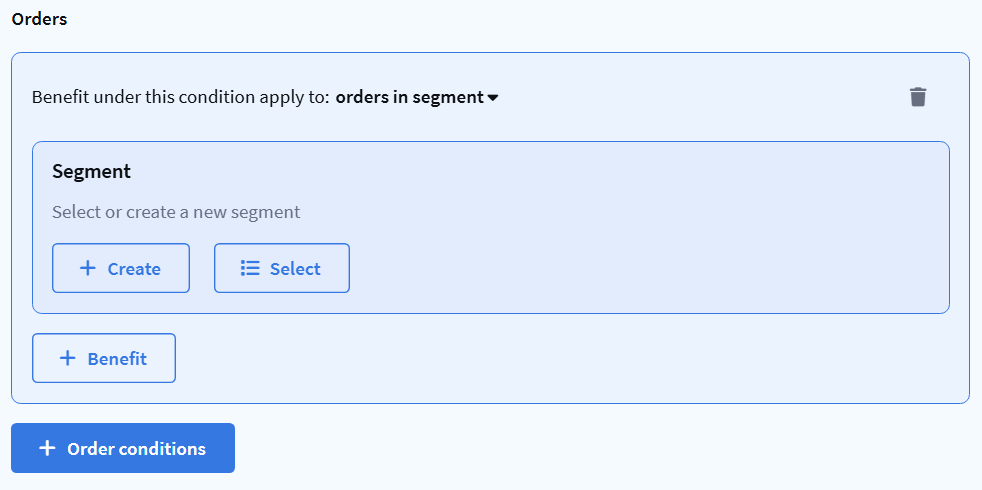
Creating a new segment
When creating a segment, specify its name and, if needed, a description. Then configure the conditions that the order must meet:
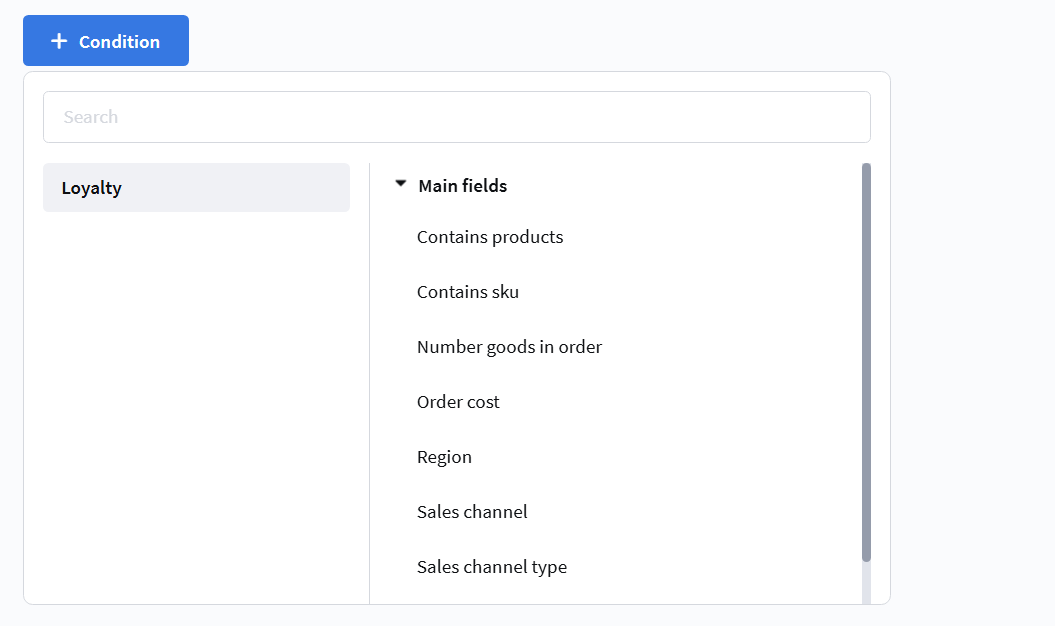
The following conditions are available:
Contains products
Checks whether the order contains specific products from a list.
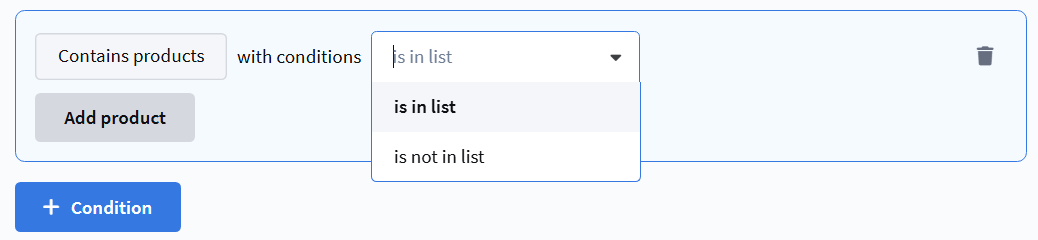
- is in list — benefits are applied if the order contains products that are included in the selected list;
- is not in list — benefits are applied if the products in the order are not included in the selected list.
Contains SKU
Checks whether the order contains SKUs from a list.
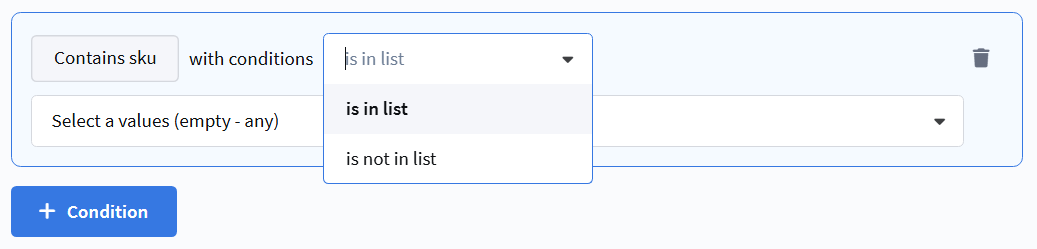
- is in list — benefits are applied if the order contains SKUs included in the selected list;
- is not in list — benefits are applied if the order does not contain SKUs included in the selected list.
Number of goods in order
Checks the number of goods in the order. Available calculation methods:
- In any position — checks if there is at least one line item with the specified quantity.
- Total positions — checks the total quantity of goods across all line items.
- In every position — checks that each line item has the specified quantity.
- Different items in order — checks the number of unique products in the order.
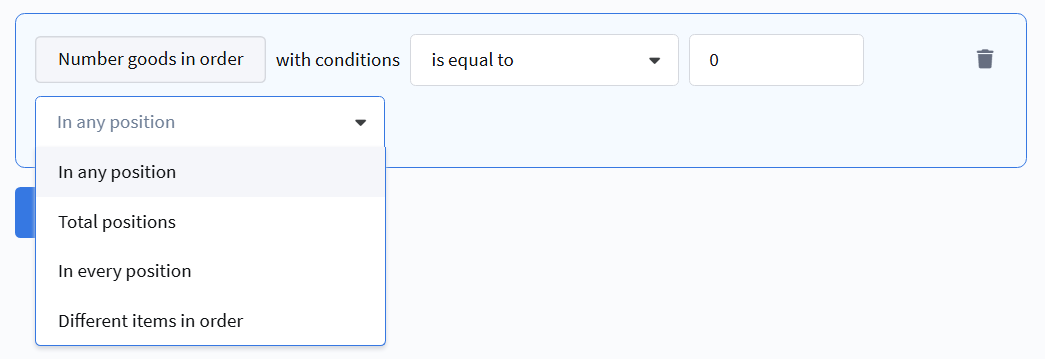
For the selected calculation method, specify an operator and a value:
- is equal to — the quantity matches the specified number.
- is not equal — the quantity does not match the specified number.
- is greater than — the quantity exceeds the specified number.
- is less than — the quantity is less than the specified number.
- is greater than or equal to — the quantity exceeds or equals the specified number.
- is less than or equal to — the quantity is less than or equals the specified number.
- in the range — the quantity is within the specified range (inclusive).
Order cost
Checks the order cost. Specify an operator, amount, and currency:
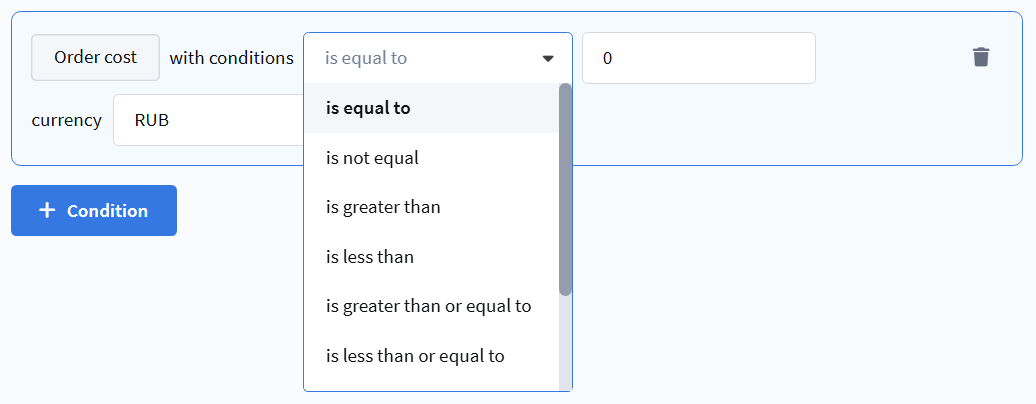
- is equal to — the order cost exactly matches the specified amount.
- is not equal — the order cost does not match the specified amount.
- is greater than — the order cost exceeds the specified amount.
- is less than — the order cost is less than the specified amount.
- is greater than or equal to — the order cost exceeds or equals the specified amount.
- is less than or equal to — the order cost is less than or equals the specified amount.
- is in list — the order cost matches one of the values in the list.
- is not in list — the order cost does not match any value in the list.
- in the range — the order cost is within the specified range (inclusive).
Order region
Checks the order region. Available operators:
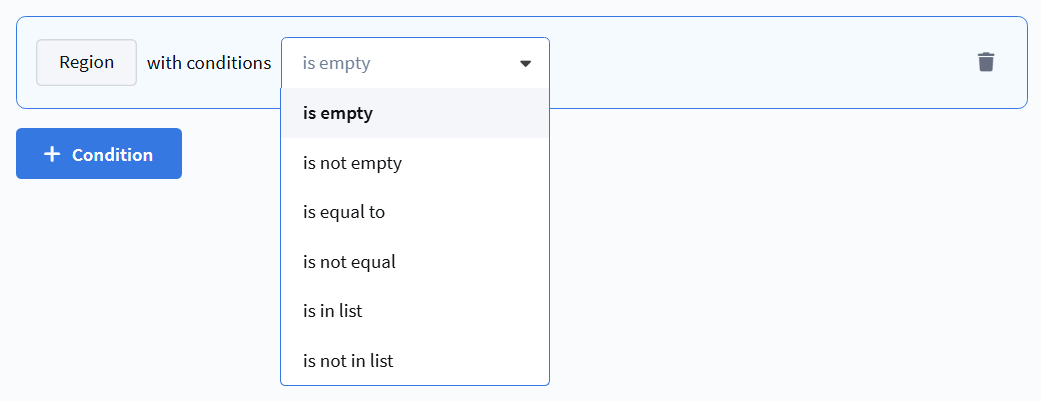
- is empty — no region is specified for the order.
- is not empty — any region is specified.
- is equal to — the region matches the selected value.
- is not equal — the region does not match the selected value.
- is in list — the region is included in the selected list.
- is not in list — the region is not included in the selected list.
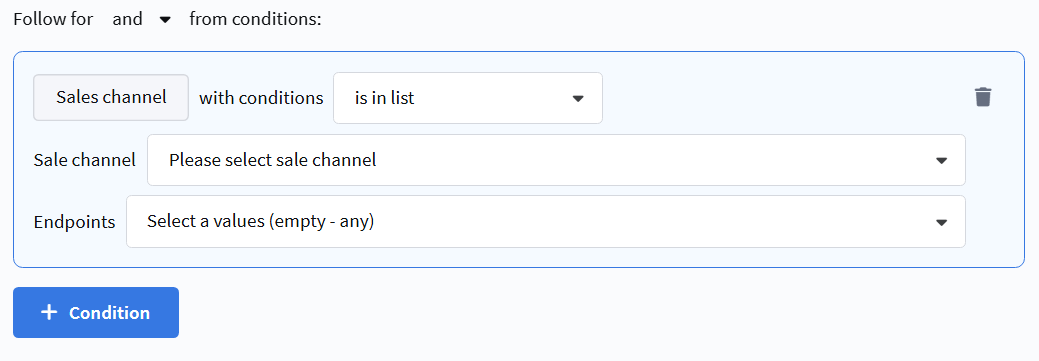
Sales channels
Checks through which sales channel and contact point the order was placed.
- is in list — benefits are applied if the order was placed through one of the selected sales channels and contact points.
- is not in list — benefits are applied if the order was not placed through the selected sales channels and contact points.
Sales channel type
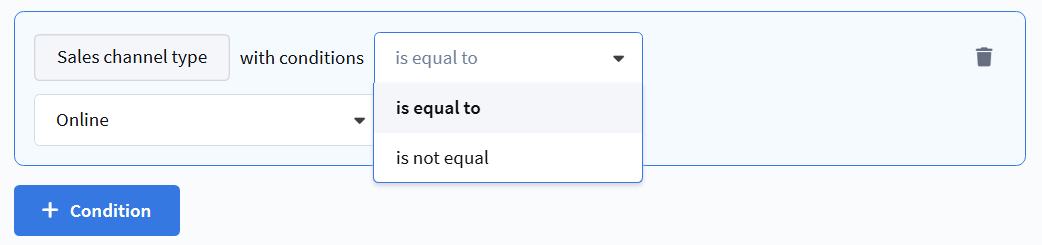
Checks the sales channel type (Online / Retail). Available operators:
- is equal to — the sales channel type matches the selected value.
- is not equal — the sales channel type does not match the selected value.
Shipping cost
Checks the order shipping cost. Specify an operator, amount, and currency:
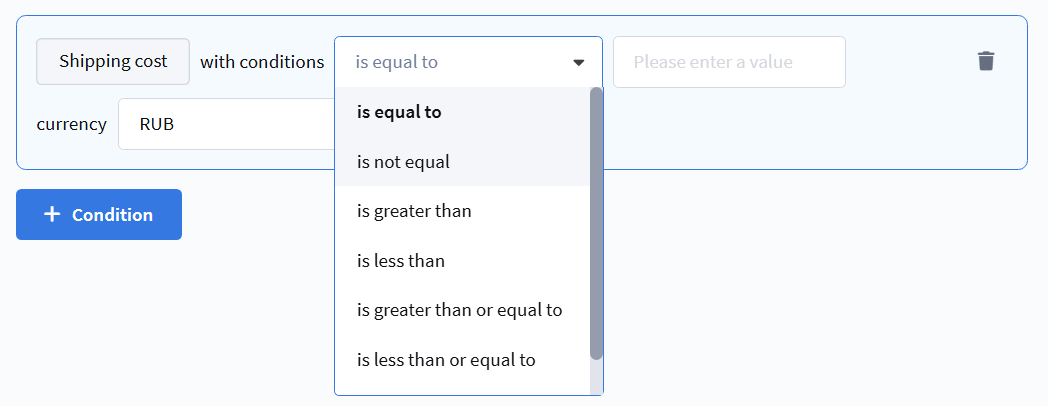
- is equal to — the shipping cost exactly matches the specified amount.
- is not equal — the shipping cost does not match the specified amount.
- is greater than — the shipping cost exceeds the specified amount.
- is less than — the shipping cost is less than the specified amount.
- is greater than or equal to — the shipping cost exceeds or equals the specified amount.
- is less than or equal to — the shipping cost is less than or equals the specified amount.
- in the range — the shipping cost is within the specified range (inclusive).